The music video generator for AI-made music

AI Music Video Generator

Made a song with Suno or Udio? Give it a visual world of its own.

MP3, WAV or M4A up to 100 MB. Sign in to upload. Full-song assembly is in development.

Choose a visual direction
Background style reference: Mixkit

Music Video Styles for Your Songs

Explore four visual directions with our AI music video generator, from lyric backgrounds to moving album art.

Choose the format around the way someone will hear your song. A lyric-led release needs room for words; an instrumental can let the imagery carry the mood. These licensed stock clips illustrate visual directions. They are not music videos generated by 4MV or demonstrations of automatic beat sync.

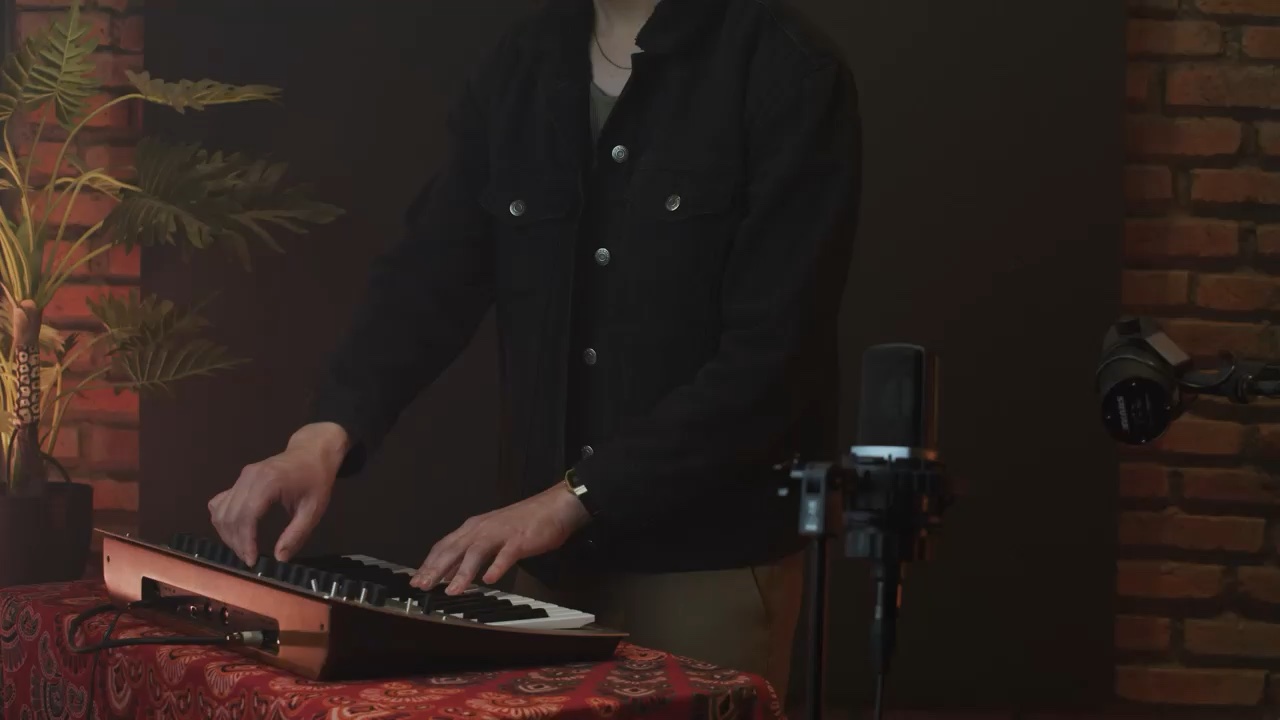
Let the words take the lead against a recording-studio performance backdrop. A lyric video suits a vocal hook, a story-driven verse or a chorus you want listeners to remember. Keep the background restrained and leave enough space for readable lines, especially when someone is watching on a phone.

Footage: Mixkit

For the words you mean

Lyric video

Let the words take the lead against a recording-studio performance backdrop. A lyric video suits a vocal hook, a story-driven verse or a chorus you want listeners to remember. Keep the background restrained and leave enough space for readable lines, especially when someone is watching on a phone.


Abstract liquid and flowing color suggest a visual direction for an electronic track. Plan gentler motion for the build, then a stronger visual change when the chorus arrives. A beat-synced MV should follow the structure of the song. This silent footage is a style reference; it has not been synchronized to a track.
Footage: Mixkit

For the drop

Beat-synced MV

Abstract liquid and flowing color suggest a visual direction for an electronic track. Plan gentler motion for the build, then a stronger visual change when the chorus arrives. A beat-synced MV should follow the structure of the song. This silent footage is a style reference; it has not been synchronized to a track.

Flowing neon liquid can set the mood for electronic, ambient and instrumental music. A loop visual gives listeners one world to settle into while the track plays. Choose a simple movement, then match the opening and closing frames in your edit. This trimmed reference clip is not a finished seamless loop.
Footage: Mixkit

For the atmosphere

Loop visual

Flowing neon liquid can set the mood for electronic, ambient and instrumental music. A loop visual gives listeners one world to settle into while the track plays. Choose a simple movement, then match the opening and closing frames in your edit. This trimmed reference clip is not a finished seamless loop.

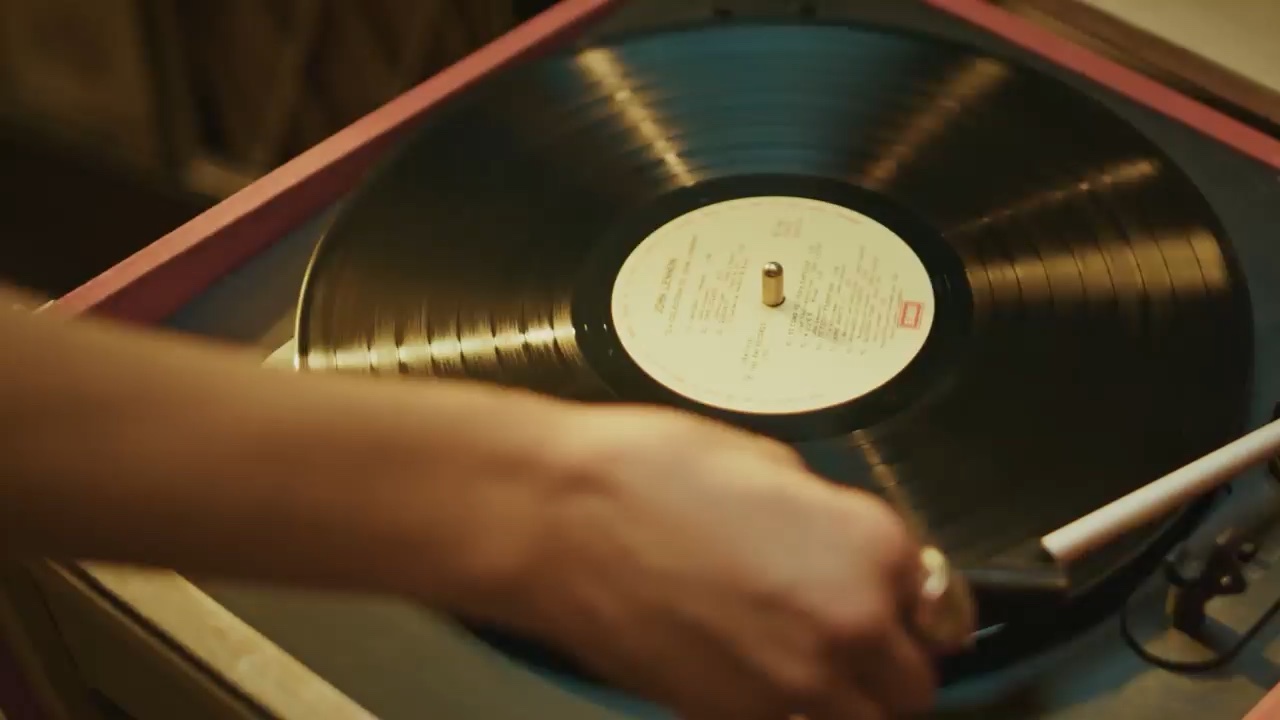
Build a moving world around the artwork and identity of your next release. This spinning vinyl reference suggests an analog direction. Album art motion can focus on a small detail, such as drifting light or a slow camera move. Keep the recognizable subject and leave titles legible when creating a release teaser.
Footage: Mixkit

For the whole release

Album art motion

Build a moving world around the artwork and identity of your next release. This spinning vinyl reference suggests an analog direction. Album art motion can focus on a small detail, such as drifting light or a slow camera move. Keep the recognizable subject and leave titles legible when creating a release teaser.

How the AI Music Video Generator Works

Start with your finished song. Upload an audio reference, choose a style, and develop your shots.

  1. Upload your track

    Start with the final mix, not a draft whose arrangement may change. Bring an audio file you are allowed to use; for a platform-made song, use a permitted export or a file you already lawfully hold. The studio supports MP3, WAV and M4A reference uploads up to 100 MB per file. Keep the original audio for your final edit.

  2. Pick a visual style

    Give your track a world: cinematic, illustrated, surreal or something entirely yours. Write a short brief with the mood, color palette, recurring subject and setting. For example, a quiet piano song might use a rain-soaked window and slow camera movement. Explore that look in the video studio before spending credits on a larger collection of shots.

  3. Export in 4K

    Choose the destination and aspect ratio before generating. A full release and a vertical teaser may need different framing. The planned music workflow targets a finished, audio-backed MV; today, duration and resolution depend on the selected video model. Arrange the individual clips with your original audio in an editor, then watch the complete export with sound before publishing.

Prepare the song before generating the shots

Mark the intro, verses, choruses and outro, then decide which moments need a new image. A short shot list helps you test one visual idea at a time. Save the final mix, lyric sheet and any authorized artwork together so you can keep the project consistent. A public sharing URL alone does not provide the audio file or permission to publish it.

How to export your audio from Suno

Plan Your Music Video Around the Beat

We are building BPM and beat detection for the AI music video generator so scene changes follow your track, from the first bar to the final drop.

Matching the beat is about more than cutting on every drum hit. A held image can suit a quiet verse, while a faster sequence can make a chorus feel different. Listen for changes in the bass, vocal phrasing and arrangement, then choose the moments where a new shot adds meaning.

For the current workflow, mark those moments in your audio editor and generate the shots around them. Keep a subject, location or color recurring across the sequence so the video belongs to one song. The waveform here illustrates a timing idea; it is not an analysis of an uploaded track.

In development: automatic beat detection and full-track editing.

Timing concept: scene changes follow the beat.
A MIDI keyboard performance as a background for a lyric layout study

Where the water goes,
we follow the light.

Lyric placement study on licensed footage. Original text, manually placed.

Create Backgrounds for Your Lyrics

The planned lyric workflow in our AI music video generator starts by transcribing your uploaded audio and aligning each line to the vocal. We do not build or source a lyrics library.

Good lyric timing starts with the words that were actually sung. Prepare the exact version of the lyrics, including repeated choruses and ad-libs. Review line breaks against the vocal phrasing, use a clear contrast against the image and avoid placing important words beneath a platform’s playback controls.

You can use the current video studio to develop a background for the song and add your own timed text in an editor. The planned automatic transcription needs a separate accuracy review before publishing. The text in this preview is an original placement study, not a transcript or a sample of automatic lyric alignment.

In development: transcription, lyric timing and language support.

Explore lyric videos

For Songs Made with Suno and Udio

Our AI music video generator is for the song you already made. Bring a track from Suno, Udio or your own session, with permission to use it.

This is for the point after music creation: you have a finished track and need a visual release. An independent artist can plan a first music video, a producer can explore an instrumental visualizer, and a songwriter can prepare a lyric-focused teaser. Start with one clear deliverable instead of generating unrelated clips.

From Suno track to video

Your audio, from the official source

Upload an audio file you obtained through the source platform’s official download. Suno share-link metadata import is planned; automatic audio retrieval is not offered.

Your music rights still matter

A video plan does not grant rights to the underlying song. Check your source platform’s current terms and the rights attached to that track before publishing.

Read Suno’s current terms

Keep the release recognizable

Use the same visual brief across the full video, cover motion and short teaser. You can change the framing for each destination while keeping the palette and main subject consistent. If you bring someone else’s artwork or a collaborator’s recording, confirm the permissions before uploading it.

AI Music Video Generator FAQ

Suno’s official download rules
Can I paste a Suno link?

Suno link import is not available yet. For now, download your own track through Suno’s official download channel and upload the audio as a reference in the studio. Planned link support is for track metadata, not for retrieving audio.

Do I need a paid Suno plan?

For commercial publishing, make sure your specific track has commercial use rights under Suno’s current terms. Free-plan songs are for personal, non-commercial use. Upgrading does not grant retroactive rights by default. Paying for a video cannot replace the music license.

Will this count against my Suno download quota?

Uploading an existing audio file here does not use a Suno download. Downloading the track from Suno may use its allowance. Suno currently lists Pro at 20 songs per month and Premier at 60; free trial downloads vary by account. Repeat downloads of the same song do not count again. Check Suno for the current rules.

What audio formats work?

The AI music video generator accepts MP3, WAV and M4A reference audio, up to 100 MB per file. Reference upload is available now. Automatic song analysis, transcription and full music-video assembly are still in development.

Can I use the output commercially?

Check the terms of the video model used and make sure you hold the necessary rights to the song, lyrics and any uploaded imagery. A paid video subscription does not clear third-party music rights. Free watermarked music-video exports are not available yet.

Can I make a full song or just a short clip?

The current studio generates individual clips, with duration and credit cost set by the selected model. For a full song, plan multiple shots and combine them with your audio in an editor. Automatic full-track assembly is still in development. Starting with a short section lets you check the visual direction before committing to the rest of the song.

Does the AI music video generator create the song too?

The workflow starts with a song you already have. Make the music in Suno, Udio or your own recording setup, then bring an audio file you can use. The focus here is the visual side of the release: scenes, lyric-video backgrounds and the look of the finished project.

Music Video Generator Pricing

Choose a plan for creating individual clips with the AI music video generator.

These are the existing video-generation plans. Automatic music-video assembly, transcription and a free watermarked export tier are not included yet. Credits are charged per clip; cost depends on the selected model and duration.

Save 10%

Lite

$8.90/month
$9.90$106.80 billed yearly

For casual creators

  • 24,000 credits, valid for 1 year
  • Text-to-video and image-to-video
  • All video models
  • Downloadable clips; model terms apply
Save 15%

Pro

$16.90/month
$19.90$202.80 billed yearly

For professionals

  • 57,600 credits, valid for 1 year
  • Text-to-video and image-to-video
  • All video models
  • Downloadable clips; model terms apply
Save 18%

Ultra

$32.90/month
$39.90$394.80 billed yearly

For power users

  • 120,000 credits, valid for 1 year
  • Text-to-video and image-to-video
  • All video models
  • Downloadable clips; model terms apply

Plan the shots, then choose a credit budget

A song length is not a fixed video-generation price. The budget depends on the number of shots, their duration, your selected model and any alternative takes you decide to generate. Test a representative clip first, check the displayed credit cost, then plan the remaining shots. The plans below use the existing video studio’s catalog and renewal terms.